Let logged-in WooCommerce customers track their orders
Identify WordPress customers, look up only their own WooCommerce orders, and show an interactive order card in chat.
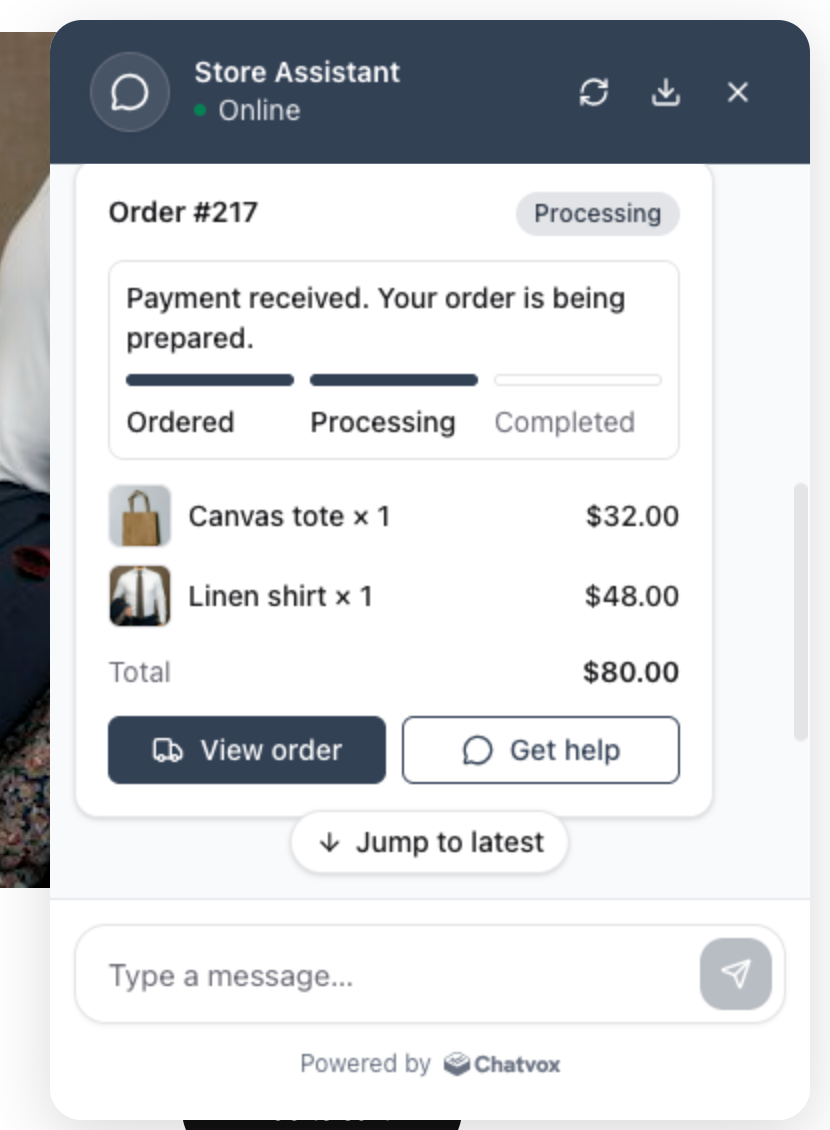
Let a customer ask “Where is my order?” without typing an order number. Your Agent uses their signed-in WordPress identity to retrieve their latest WooCommerce orders and show the newest order’s status, products, and total in an interactive card. Customers can also ask about a specific order or their other recent orders.
Requirements
- A Chatvox Agent on Starter or above, with its web widget enabled.
- WordPress with WooCommerce and the Chatvox WordPress plugin 1.4.0 or later, connected to that Agent.
- A public HTTPS store address that Chatvox can reach.
- An administrator account to create a read-only WooCommerce REST API key.
- A test customer with orders assigned to their WordPress account. Guest orders are not included.
This guide uses Jamie Rivera, WordPress user 31, with orders 215 (Completed), 216 (On hold), and 217 (Processing). Use your own customer and order IDs when testing.
Identify signed-in customers
In WordPress, open Settings → Chatvox. Turn on Identify logged-in WordPress users to Chatvox. In your Chatvox Agent, open Settings → Security → User identification, generate a verification secret if needed, and copy it into the plugin’s Identity verification secret. Select Save widget settings.
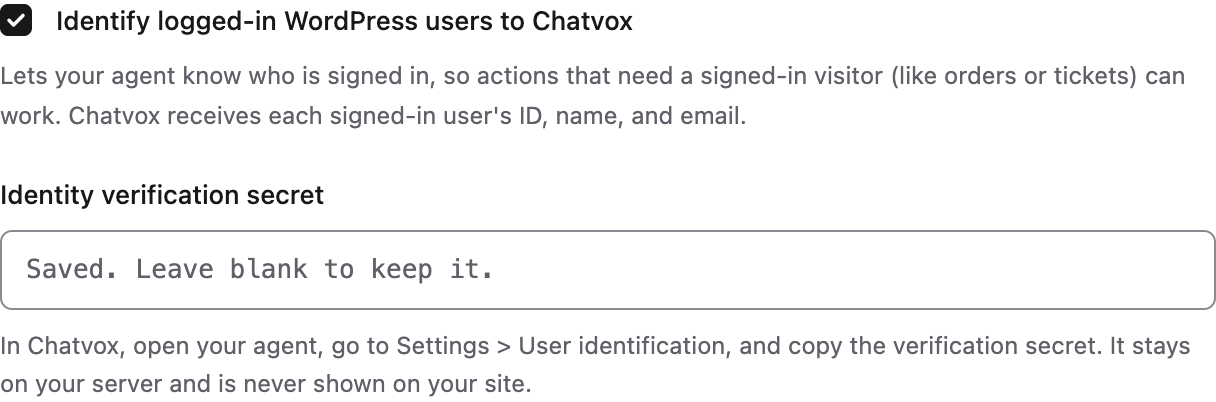
The plugin sends the WordPress user ID unchanged, such as 31, together with the site address. Chatvox separates contacts by Agent, website, and user ID. See User identification.
Create a read-only WooCommerce API key
Open WooCommerce → Settings → Advanced → REST API → Add key:
| Setting | Value |
|---|---|
| Description | Chatvox |
| User | An administrator |
| Permissions | Read |
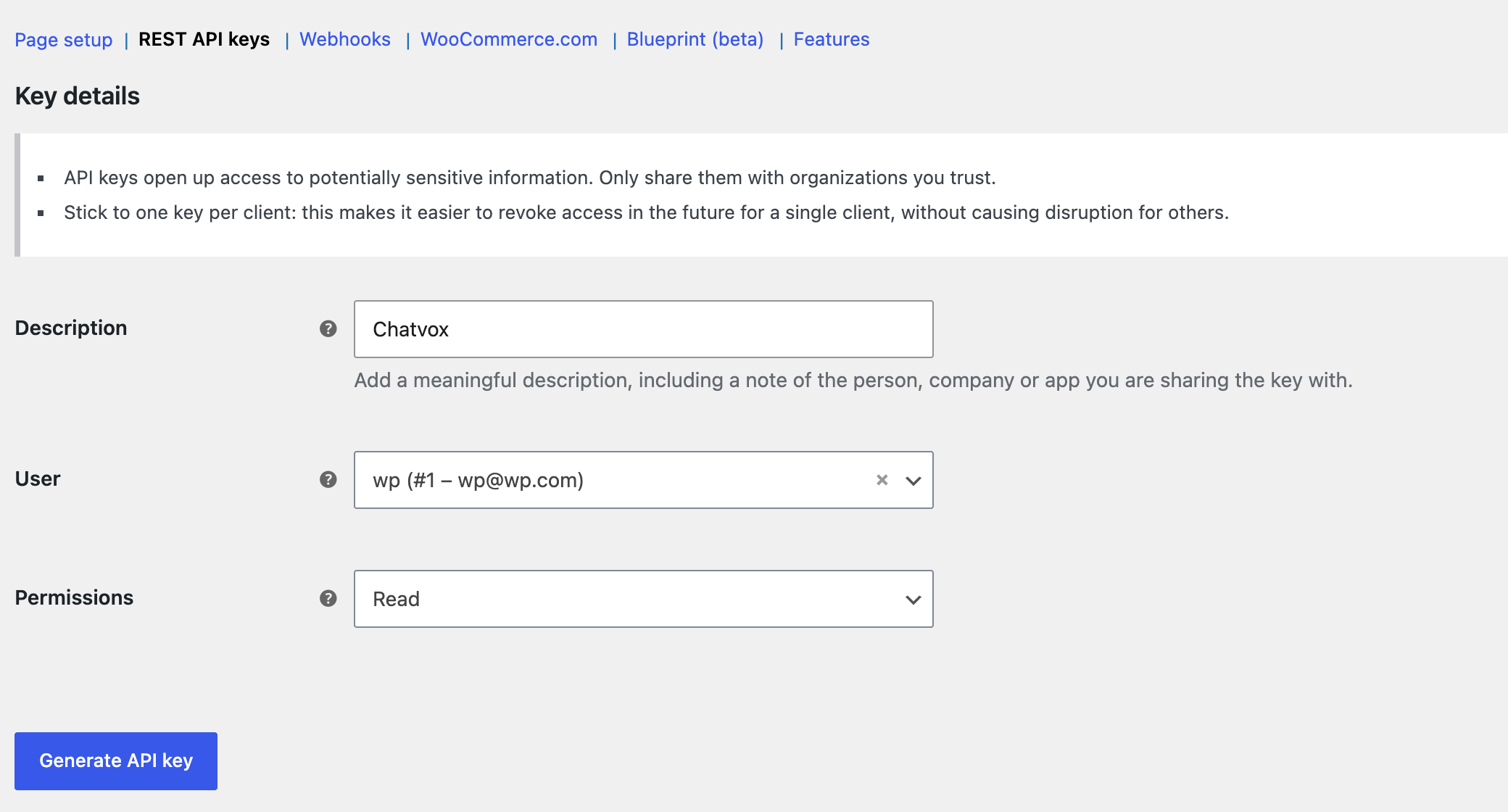
Select Generate API key. Copy the consumer key (ck_…) and consumer secret (cs_…) somewhere private. WooCommerce shows the secret only once. Keep this key Read only; the guide does not need write access.
Check it with curl
Set these shell variables to your public store address and API credentials. Keep credentials out of chat and widget data.
STORE_URL='https://your-store.example'
WC_KEY='ck_paste-your-consumer-key'
WC_SECRET='cs_paste-your-consumer-secret'
Get up to five orders for the test customer:
curl -i -u "$WC_KEY:$WC_SECRET" \
  "$STORE_URL/wp-json/wc/v3/orders?customer=31&per_page=5"
Expect HTTP 200 and a JSON list. This real test response is trimmed to the newest order and the fields used here, with the image host replaced. Real responses contain more fields, including billing and shipping details.
[
  {
    "id": 217,
    "number": "217",
    "status": "processing",
    "currency_symbol": "$",
    "total": "80.00",
    "date_created": "2026-10-24T01:45:11",
    "line_items": [
      {
        "name": "Canvas tote",
        "quantity": 1,
        "total": "32.00",
        "image": {
          "src": "https://your-store.example/wp-content/uploads/2026/10/tote.jpg"
        }
      },
      {
        "name": "Linen shirt",
        "quantity": 1,
        "total": "48.00",
        "image": {
          "src": "https://your-store.example/wp-content/uploads/2026/10/shirt.jpg"
        }
      }
    ]
  }
]
Check a specific order and ownership:
# Owned order: 200, a list containing only order 217
curl -i -u "$WC_KEY:$WC_SECRET" \
  "$STORE_URL/wp-json/wc/v3/orders?customer=31&per_page=5&include=217"

# Another customer's order: 200, []
curl -i -u "$WC_KEY:$WC_SECRET" \
  "$STORE_URL/wp-json/wc/v3/orders?customer=31&per_page=5&include=218"

# No key: 401
curl -i "$STORE_URL/wp-json/wc/v3/orders?customer=31&per_page=5"
An empty customer= returns 400. An empty include= leaves the customer’s latest orders unfiltered. No matching orders returns 200 with [].
Chatvox calls your store from the internet. Use the exact public HTTPS address that returns JSON directly. Local development addresses, private networks, and redirects do not work.
Create the API connection
In your Agent, open Build → API connections → Create connection:
| Setting | Value |
|---|---|
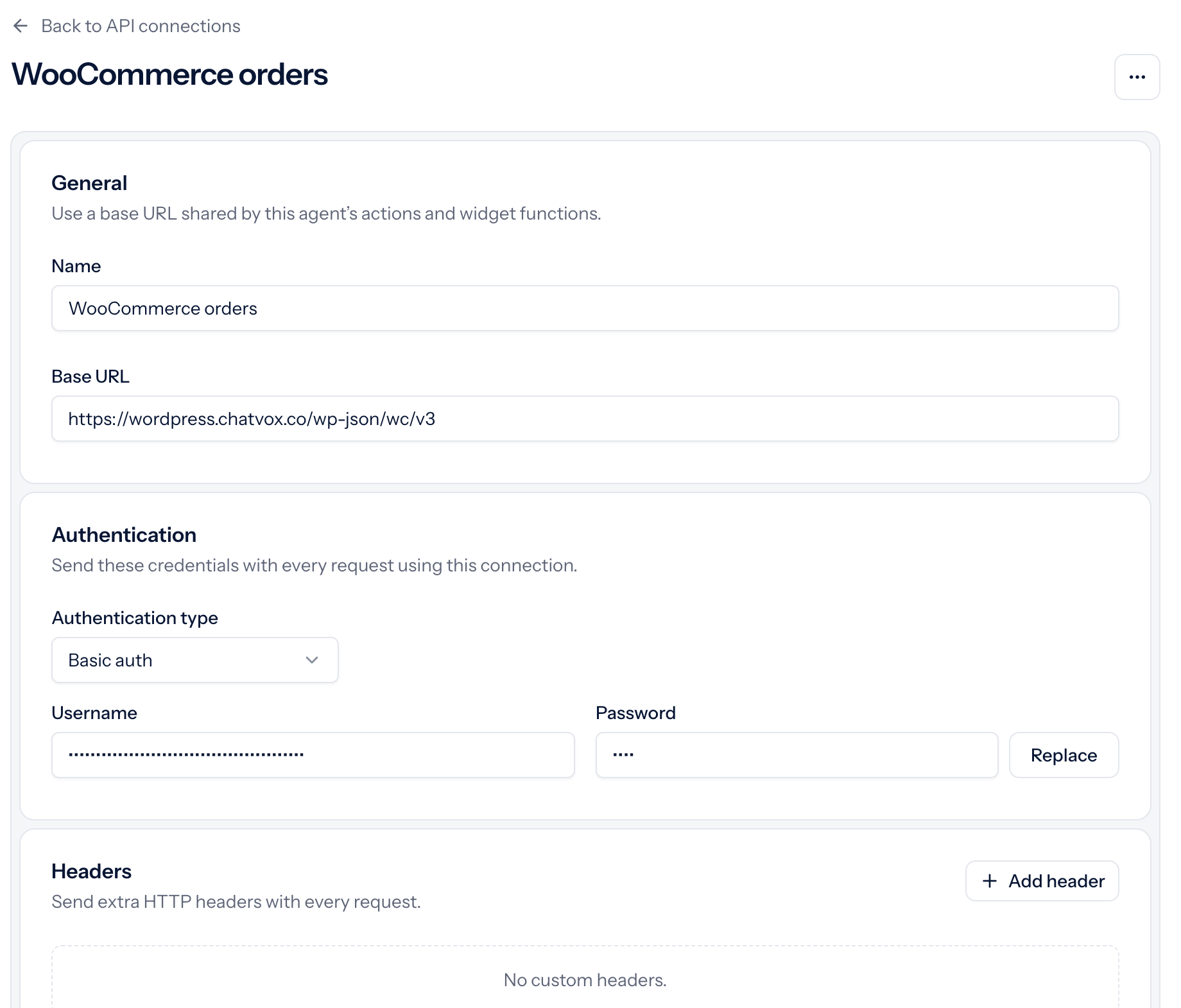
| Name | WooCommerce orders |
| Base URL | https://your-store.example/wp-json/wc/v3 |
| Authentication type | Basic auth |
| Username | Your consumer key (ck_…) |
| Password | Your consumer secret (cs_…) |
Leave Headers empty and select Save changes. The connection keeps credentials on the server. Keep both credentials private, including the username.
Import the Order tracker widget
Download the Order tracker widget file. Open Build → Widgets, select Import above the widget list, and choose the JSON file. The builder opens with the imported widget. Import creates a new widget; if its name is already in use, Chatvox adds a number.
The file includes the layout, example data, and five fields: number, status, total, currency, and items. It maps WooCommerce status slugs to readable labels and shows View order and Get help buttons. Completed means completed by the store; it does not prove carrier delivery.
Open Functions, expand viewOrder, and edit its Link. Replace your-store.example in https://your-store.example/my-account/view-order/{{number}}/ with your store address. Check the account page path too if your store uses a different one.
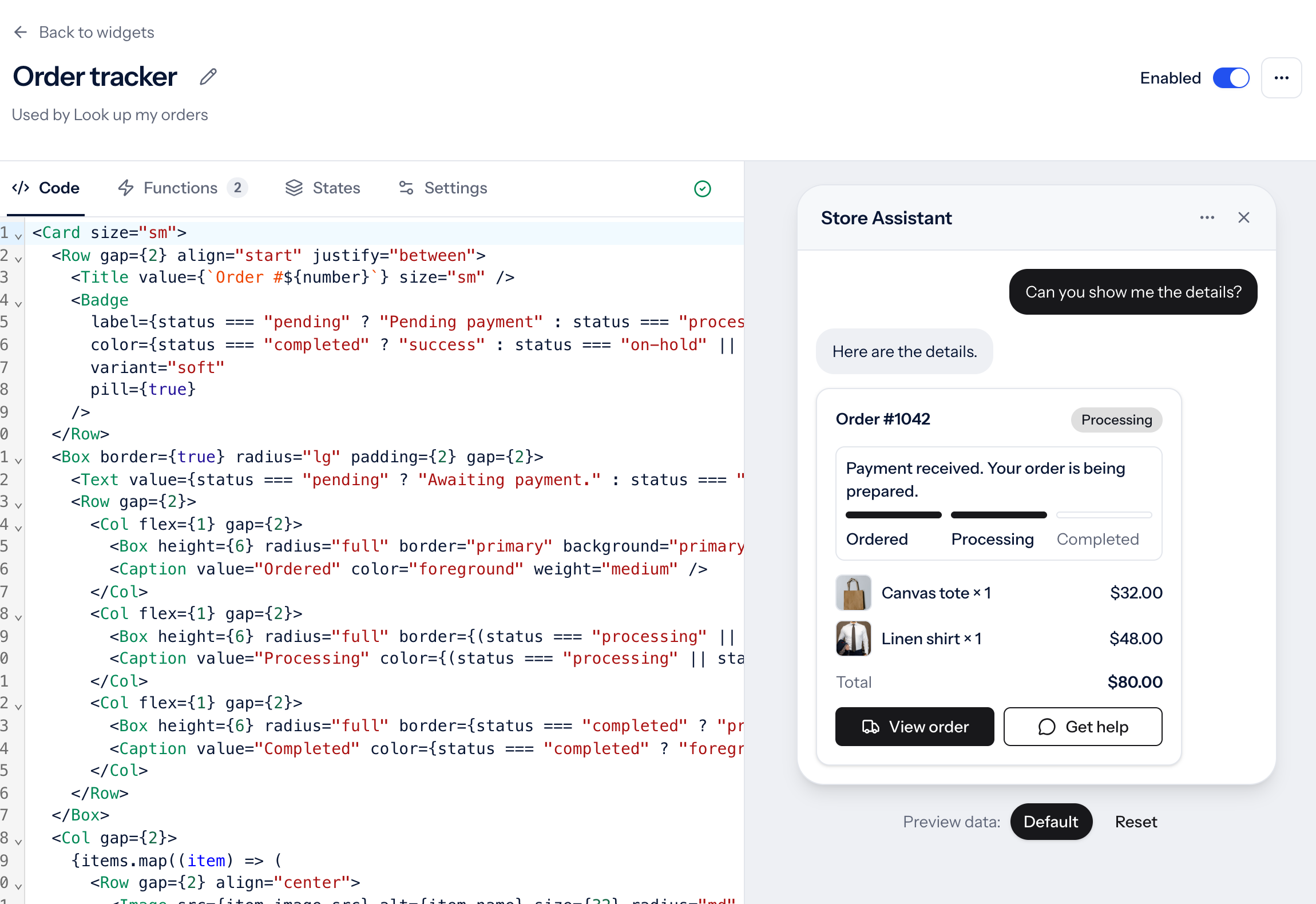
Item prices are line totals before tax. The total is the whole order total, which can include tax, shipping, fees, and discounts. currency holds the currency symbol, such as $.
Keep Enabled on and select Save changes. The Default example is sample preview data; mapped API fields replace it at runtime. When the action returns no matching fields, such as an empty list, Chatvox shows no card. If replacing an old widget, remove it once no action uses it so it cannot appear on its own.
Create the action
Open Build → Actions → Create action and select Custom API. Enter:
| Setting | Value |
|---|---|
| Action name | Look up my orders |
| What it does | Looks up the signed-in customer’s own WooCommerce orders. Leave number empty for their latest orders. Never guess an order number. |
| When to use | When the customer asks where their order is, checks an order status, or asks about their recent or other orders. |
| While it runs | Checking your order… |
| API connection | WooCommerce orders |
| Method | GET |
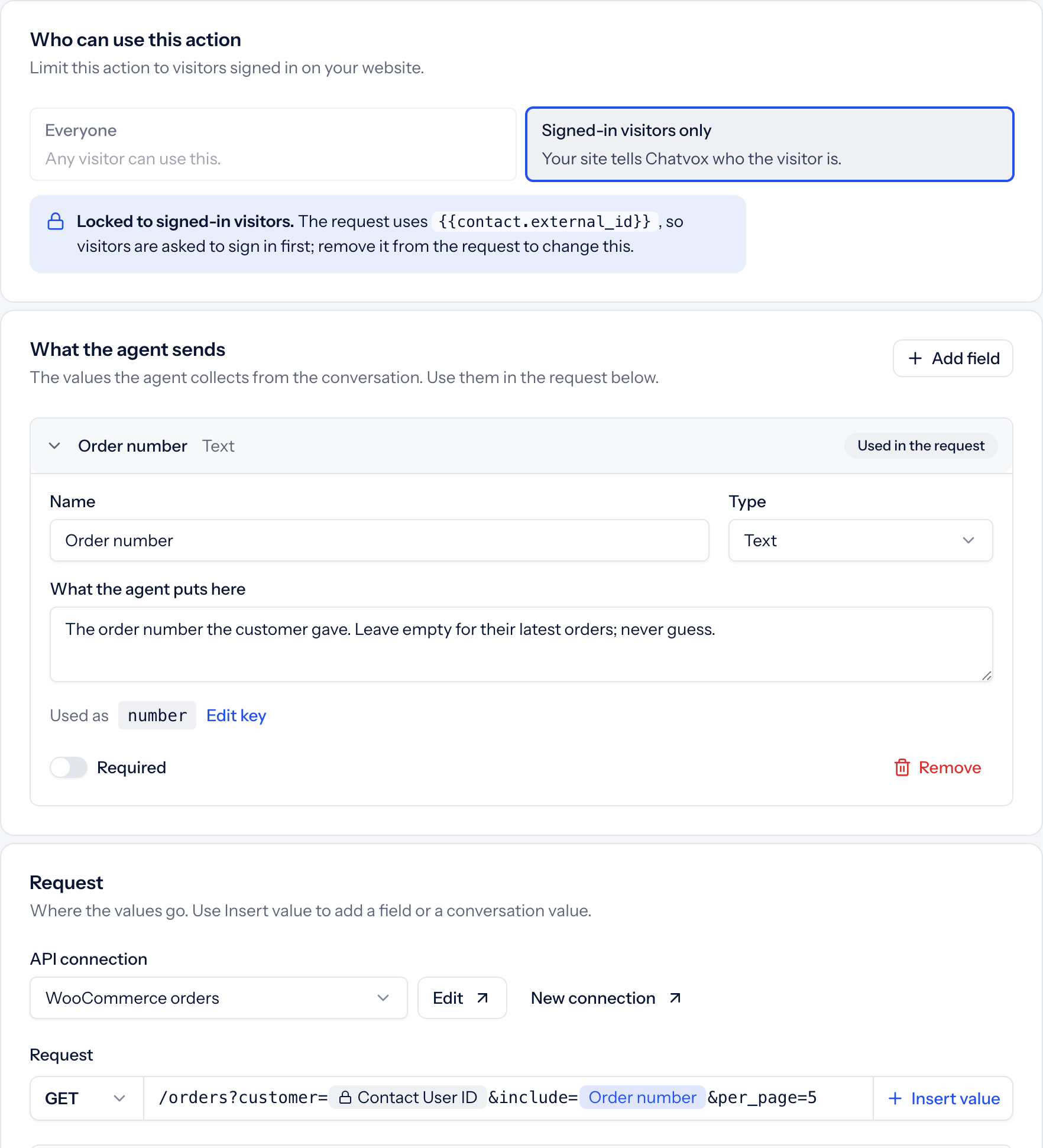
| Path and query | /orders?customer={{contact.external_id}}&include={{number}}&per_page=5 |
Under What the agent sends, select Add field:
| Setting | Value |
|---|---|
| Name | Order number |
| Used as (select Edit key) | number |
| Type | Text |
| What the agent puts here | The order number the customer gave. Leave empty for their latest orders; never guess. |
| Required | Off |
Who can use this action locks to Signed-in visitors only because the request uses {{contact.external_id}}. Chatvox fills that value from the verified sign-in; do not create a customer input field.
Under Response, use:
| Setting | Value |
|---|---|
| Response format | JSON |
| Success path | Empty |
| Message path | Empty |
| Data path | Empty |
| What the AI can see | All fields |
| Widget | Order tracker, or the imported name if Chatvox added a number |
Clear all three path fields. WooCommerce returns a bare list, without a data wrapper or success flag. These settings use the HTTP status for success and the whole list as data. The card shows the first order; the Agent can use all returned orders in its answer.
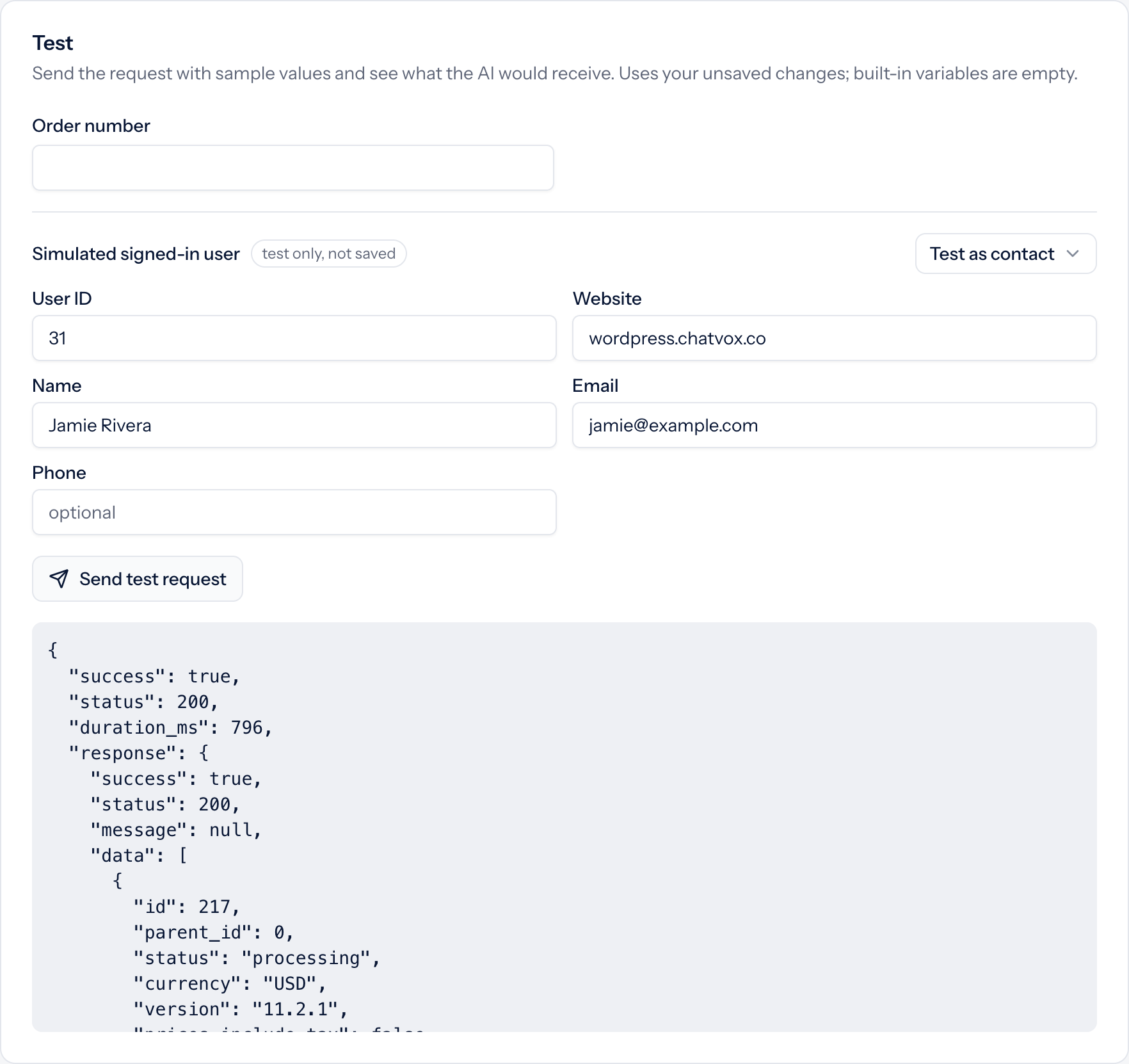
In Test → Simulated signed-in user, select Test as contact and choose your test customer. They appear after chatting with this Agent while signed in. Check User ID is 31 and Website is your store’s host. You can also enter these values manually. Leave Order number empty and select Send test request. Expect a successful latest-orders list. This test sends a real GET request but does not render the card.
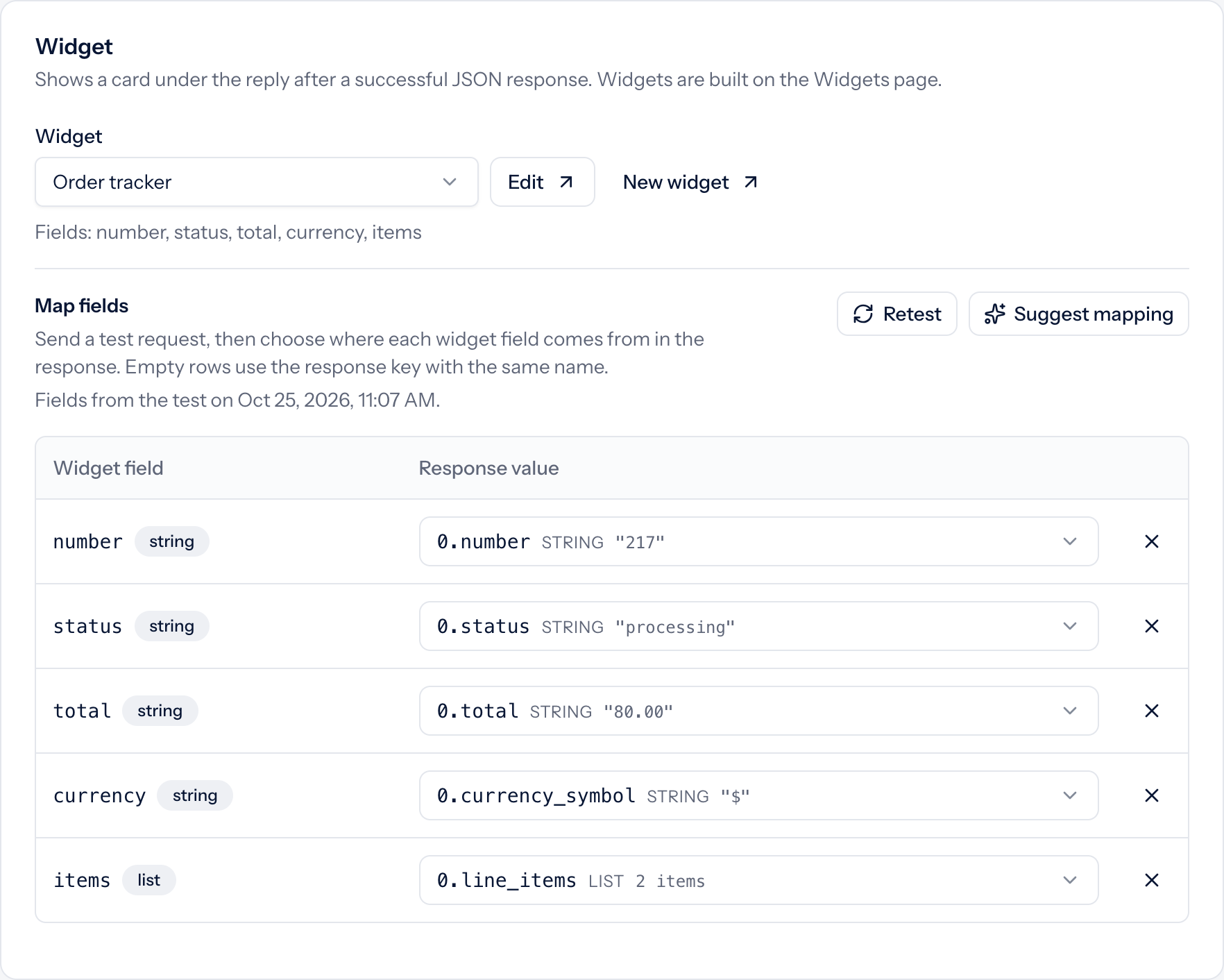
Under Map fields, open each Response value picker. Lists show their first item. Choose these fields from that first order, rather than Get all values:
| Widget field | Response path |
|---|---|
number |
0.number |
status |
0.status |
total |
0.total |
currency |
0.currency_symbol |
items |
0.line_items |
Test again with an owned order number, then another customer’s order ID. The latter must return []. WooCommerce’s include parameter takes an order ID. In stock WooCommerce this equals the displayed order number. Stores using a sequential order numbers plugin need a different lookup that resolves the displayed number within the customer’s orders.
Select Save changes, confirm the action is Enabled, and keep Web widget on under Channels. Keep Run again → Every time so follow-up questions retrieve current orders. The action and its selected widget use one Actions & Widgets slot together.
Try it as a customer
Sign in to the store as your test customer and open a fresh chat:
| Message | Expected behavior |
|---|---|
| Where is my order? | Shows the latest order card, with real products, status, and total. |
| What about order 215? | Shows that customer’s order 215. |
| What are my other orders? | Answers from up to five recent orders. |
| What about order 218? | If 218 belongs to someone else, shows no card and says no matching order was found. |
Select View order and confirm it opens the correct order in the customer’s account. Get help sends a follow-up message in the same chat; it does not create a ticket or send email.
Try a fresh chat while signed out. The action is unavailable and the Agent asks the visitor to sign in. No order data should appear.
Why customers only see their own orders
The WooCommerce key can read every order. Ownership comes from this request:
- Chatvox always fills
customerfrom the verified sign-in. AI and visitor values cannot override it, and an empty User ID is refused before any request. {{number}}is URL-encoded, so it cannot add anothercustomerparameter.- WooCommerce’s
includeonly filters within that customer’s orders. Another customer’s order ID returns[]. - The plugin includes the site address in the identity token. Chatvox sends the User ID only to that domain or its subdomains.
Keep the key Read only. Keep the customer={{contact.external_id}} filter in the request, even when looking up one order.
Troubleshooting
| Problem | What to check |
|---|---|
| Action not offered | Check the plan, Enabled state, Web widget channel, and When to use condition. The visitor must have an active verified sign-in. In editor tests, supply a User ID and Website. |
| 401 | Check the consumer key and secret, Read permissions, and Basic auth. Check that your host or security plugin passes the Authorization header to WordPress. |
This request goes to a different website than the one you signed in to. |
The connection’s domain differs from the site address in the token. Use the store’s own domain, or set the signing website with the plugin’s chatvox_identity_issuer filter as described in User identification. |
| No card or an empty list | The customer may have no orders, or the orders may be guest orders not linked to their account. Check the User ID, clear Data path, and map all five fields to the first list item. |
| View order opens the wrong page | Replace your-store.example in the widget’s Functions → viewOrder → Link and check your store’s account page path. |
| Missing images | Set product images and check that each line_items[].image.src URL opens in the visitor’s browser. Map items to 0.line_items, including its image objects. |