Show your WooCommerce products in chat
Connect WooCommerce's public Store API to Chatvox and show real products with images, prices, stock, and links. No code or API keys needed.
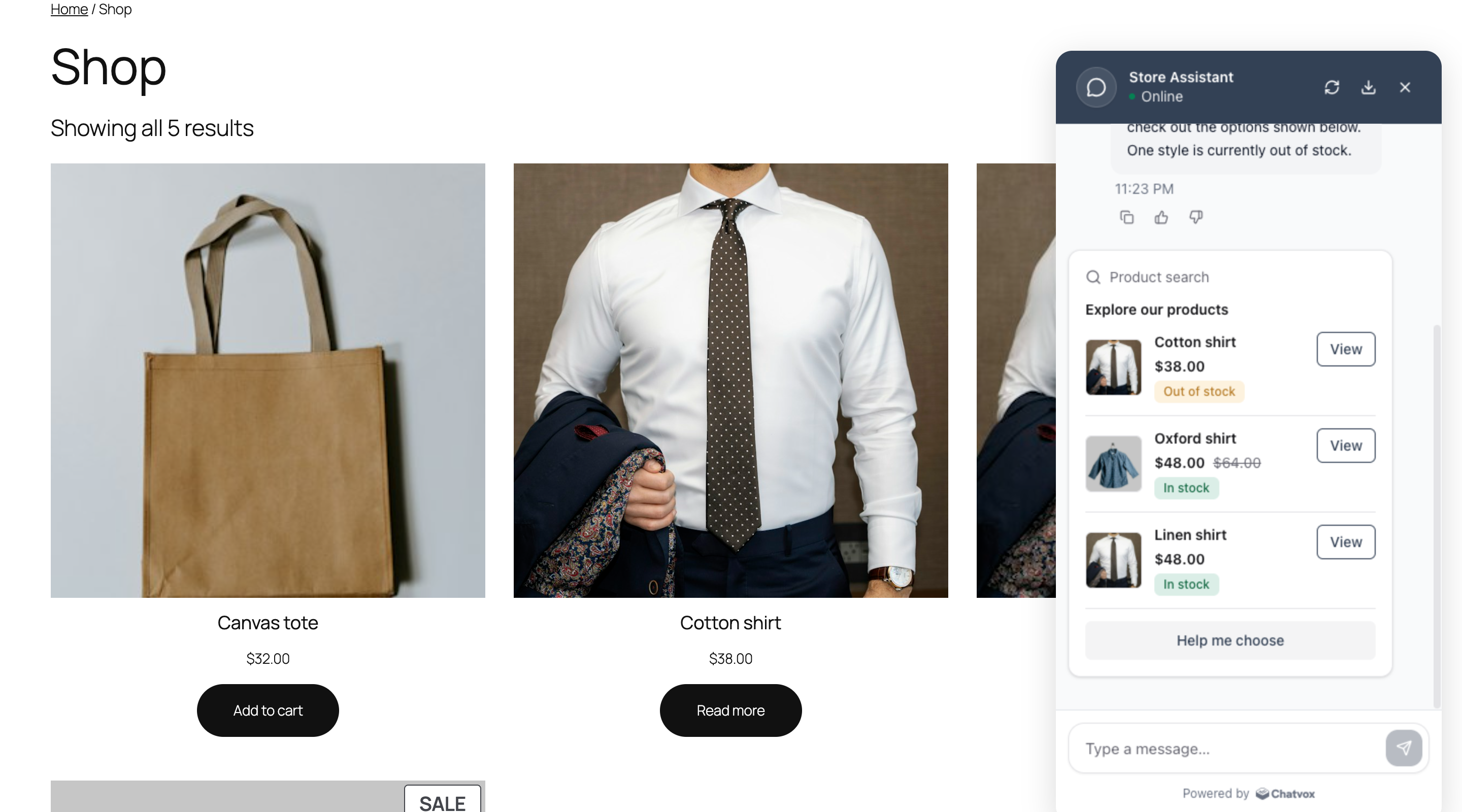
Let visitors ask “Do you have shirts?” and browse matching products inside chat. Your Agent searches your WooCommerce store and shows up to four products with images, prices, stock badges, and links to their product pages. Visitors can search whether they are signed in or not.
Requirements
- A Chatvox Agent on Starter or above, with its web widget enabled and installed on your store.
- A WooCommerce store with published products. The Store API is built in to current WooCommerce.
- A public HTTPS store address that Chatvox can reach, such as
https://shop.example.com.
The Chatvox WordPress plugin is an easy way to install the web widget. It is optional for this guide if you already have the web widget installed. You do not need user identification, WooCommerce API keys, or a custom plugin.
Check your Store API
Replace https://shop.example.com with your store address and open this URL in your browser:
https://shop.example.com/wp-json/wc/store/v1/products?search=shirt&per_page=2If you prefer a terminal, the same check is:
curl 'https://shop.example.com/wp-json/wc/store/v1/products?search=shirt&per_page=2'Expect HTTP 200 and a JSON list of matching products. This example is trimmed to the fields the widget uses; your product names, prices, and image URLs will differ:
[
  {
    "name": "Oxford shirt",
    "permalink": "https://shop.example.com/product/oxford-shirt/",
    "on_sale": true,
    "prices": {
      "price": "4800",
      "regular_price": "6400",
      "currency_minor_unit": 2,
      "currency_prefix": "$",
      "currency_suffix": "",
      "currency_decimal_separator": ".",
      "currency_thousand_separator": ","
    },
    "images": [
      {
        "thumbnail": "https://shop.example.com/wp-content/uploads/oxford-shirt-300x300.jpg"
      }
    ],
    "is_in_stock": true
  }
]
No matches returns []. Try a word from one of your product names if your store does not sell shirts. An empty search returns products without a search term; per_page limits how many are returned.
WooCommerce’s Store API exposes public product data without authentication. This endpoint does not require the keys used for WooCommerce’s administrative REST API.
Create the API connection
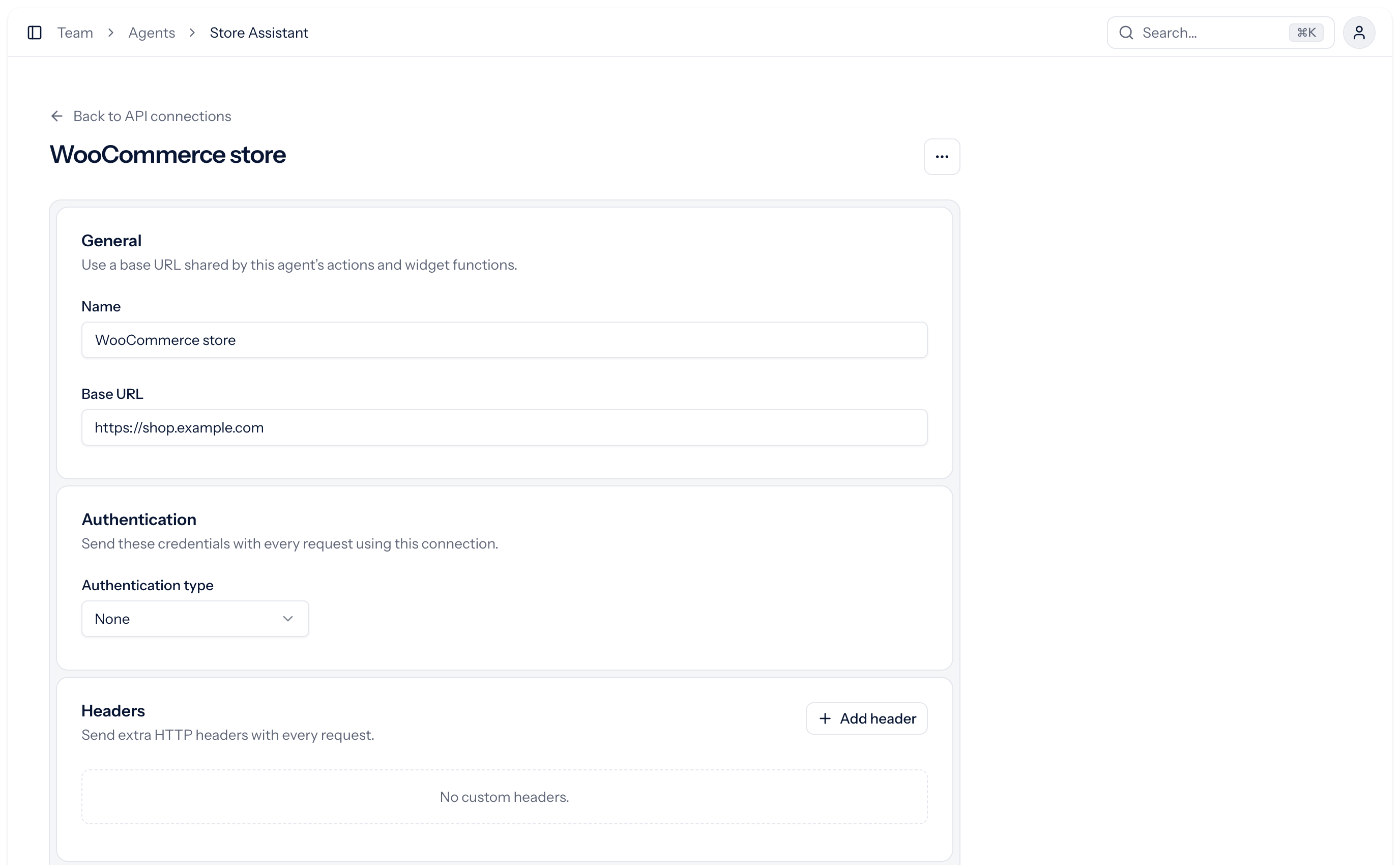
In your Agent, open Build → API connections → Create connection:
| Setting | Value |
|---|---|
| Name | WooCommerce store |
| Base URL | Your public store address, such as https://shop.example.com |
| Authentication type | None |
Leave Headers empty and select Save changes. Use the exact HTTPS address that returns JSON directly. Chatvox does not follow redirects. If WordPress is installed in a subdirectory, include it in the base URL.
Import the Product results widget
Download the Product results widget file. Open Build → Widgets, select Import above the widget list, and choose the downloaded JSON file. The builder opens with the widget ready to save. Import creates a new widget; it does not overwrite an existing one. If the name is already in use, Chatvox adds a number.
The file includes one field, products (List), and two functions:
| Button | What it does |
|---|---|
| View | Opens that product’s permalink in a new tab. |
| Help me choose | Sends “Can you help me choose between these?” as the visitor’s next message. |
Each row shows images[0].thumbnail, the product name, its current price, and an In stock or Out of stock badge from is_in_stock. When on_sale is true, it also shows the regular price struck through. The layout displays up to four products.
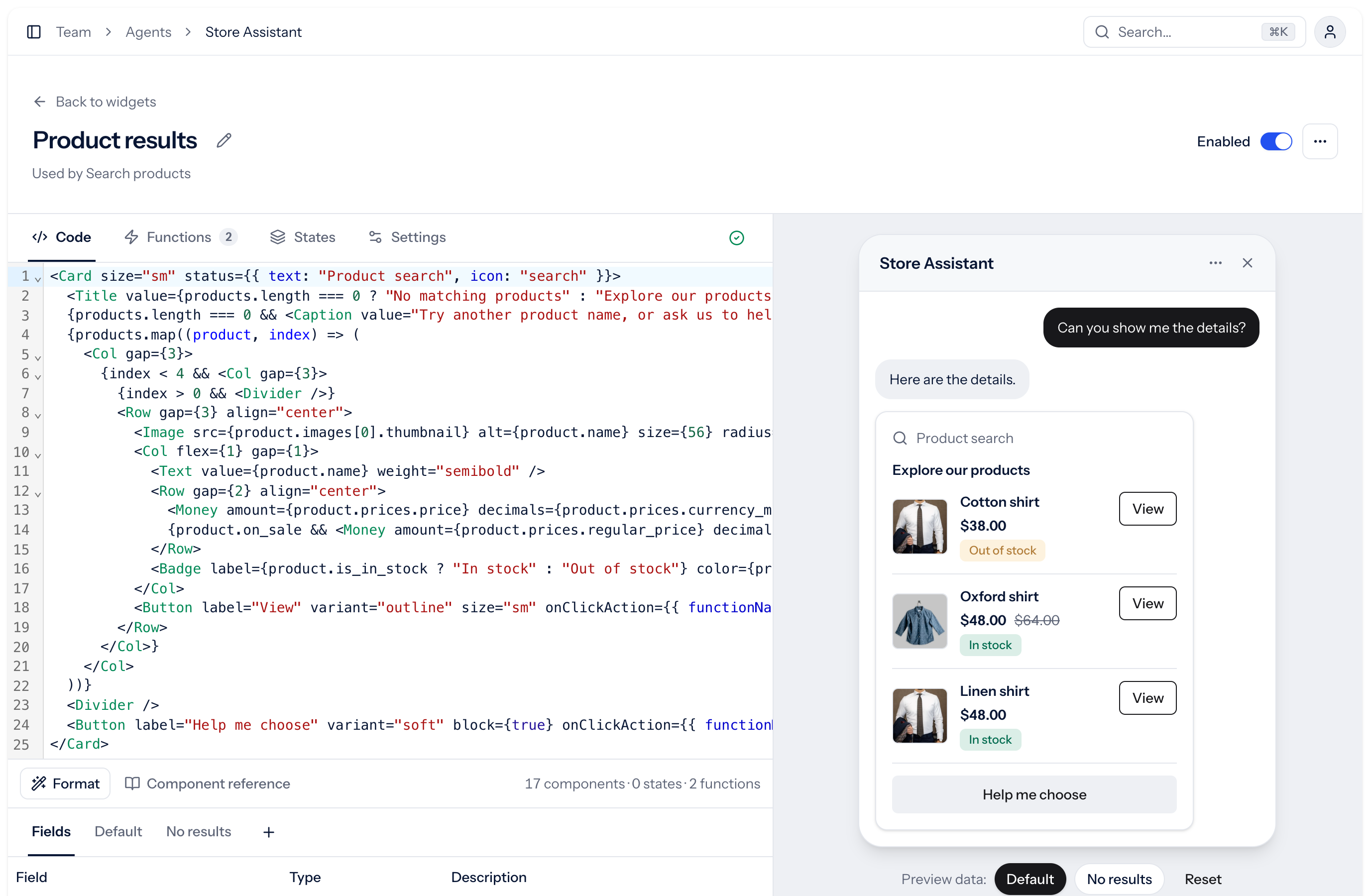
Keep Enabled on and select Save changes. There is no code to write or paste. The Default preview contains sample products; the action response replaces the products list. Select No results to preview the empty state. Named examples affect only the preview.
Store API prices are strings in minor units: "4800" with currency_minor_unit: 2 means $48.00, not $4,800. The imported widget’s Money component reads the amount, minor unit digits, currency prefix and suffix, and separators from prices to format it correctly.
Create the action
Open Build → Actions → Create action and select Custom API. Enter:
| Setting | Value |
|---|---|
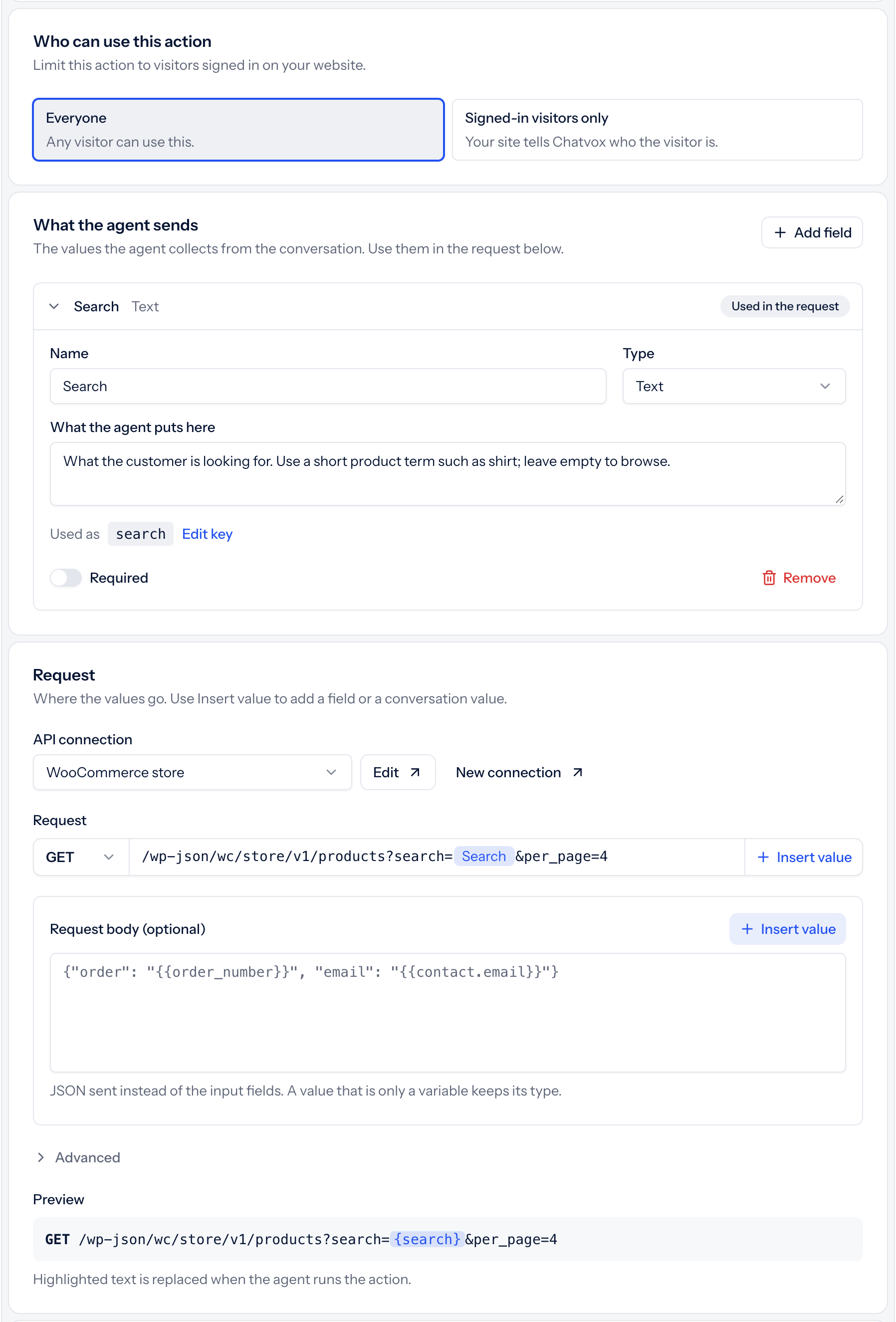
| Action name | Search products |
| What it does | Searches the WooCommerce catalog and returns up to four matching products with current prices, stock, and product links. Use a short product term, such as shirt rather than shirts; leave search empty to browse. Do not claim there are more results than returned. |
| When to use | When the visitor asks whether we sell or have a product, wants to find, browse, list or compare products, or asks about product prices or stock. Search even if we might not sell the requested product. |
| While it runs | Searching products… |
| Who can use this action | Everyone |
| API connection | WooCommerce store |
| Method | GET |
| Path and query | /wp-json/wc/store/v1/products?search={{search}}&per_page=4 |
Under What the agent sends, select Add field:
| Setting | Value |
|---|---|
| Name | Search |
| Used as (select Edit key) | search |
| Type | Text |
| What the agent puts here | What the customer is looking for. Use a short product term such as shirt; leave empty to browse. |
| Required | Off |
The optional input lets the Agent browse without asking for a search term. The path already includes search; you do not need another query field.
Under Response, use:
| Setting | Value |
|---|---|
| Response format | JSON |
| Success path | Empty |
| Message path | message |
| Data path | Empty |
| What the AI can see | All fields |
| Widget | Product results, or the imported name if Chatvox added a number |
Clear the default Success path and Data path. With these empty, Chatvox uses the HTTP status for success and the whole response.
In Test, enter shirt in Search and select Send test request. Then, under Map fields, open the Response value list for products and choose Whole response:
| Widget field | Response value |
|---|---|
products |
Whole response |
The Store API returns a bare list, without a products wrapper. Whole response maps that list to the widget’s products field. See Custom API response mapping.
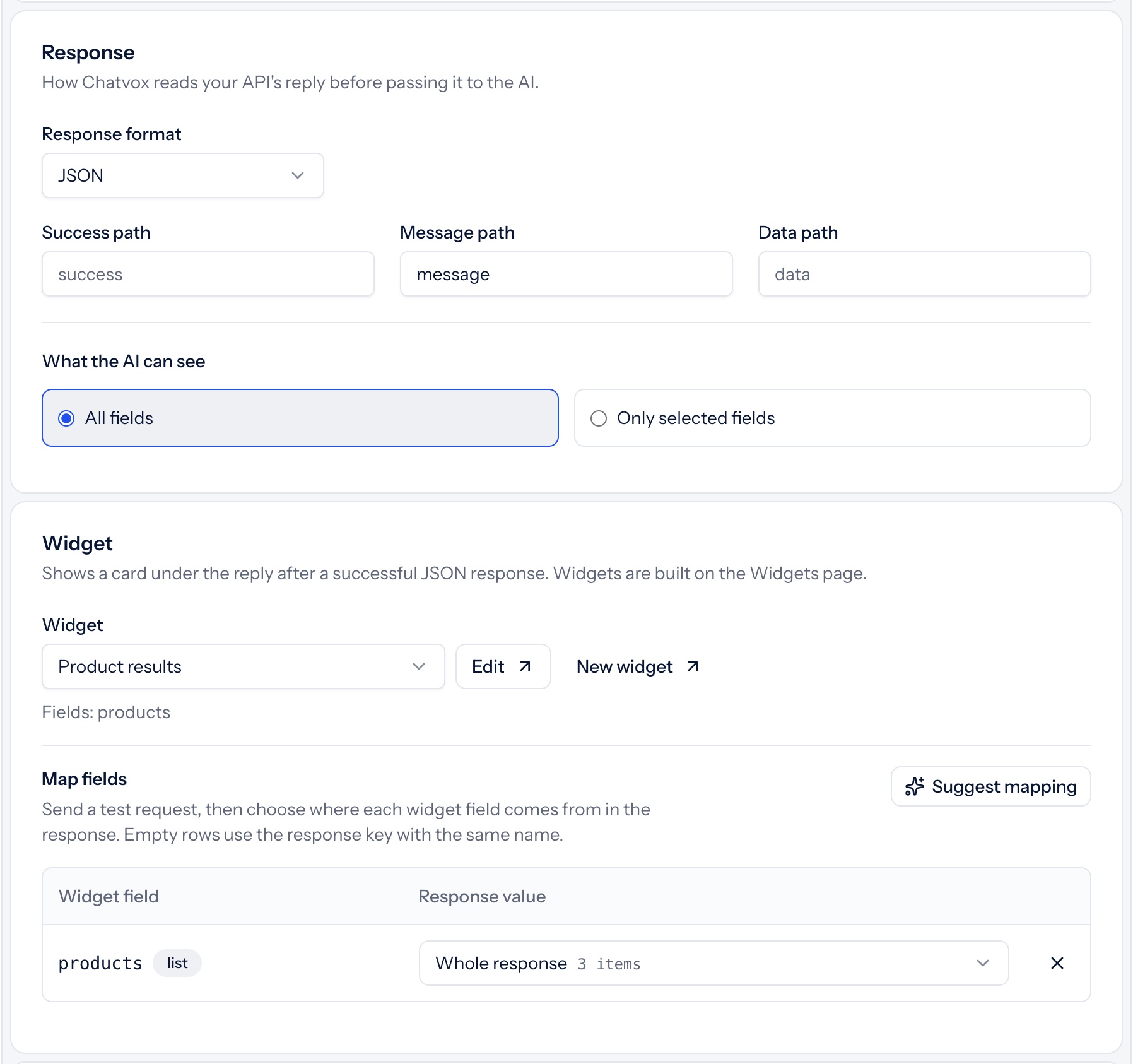
Keep All fields here. Only selected fields currently does not accept list-item paths such as 0.name. Store API products include extra data such as HTML descriptions, so per_page=4 keeps each response small. This guide does not add pagination or retrieve the whole catalog.
The test response should be a successful product list. Also test a term you do not sell, such as bicycle; expect a successful empty list. This checks the request and AI response data; it does not render the widget.
Select Save changes, confirm the action is Enabled, and keep Web widget on under Channels. Keep Run again → Every time so later searches retrieve current data. The action and its selected widget use one Actions & Widgets slot together.
Try it on your store
Open the chat on your storefront and try:
| Message | Expected behavior |
|---|---|
| Do you have shirts? | Shows matching products with their current prices, images, and stock badges. Use a product your store sells. |
| Show me your products. | Returns up to four products without asking for a search term. |
| Do you sell bicycles? | If you do not sell bicycles, shows No matching products and offers help instead of sample products. |
For a sale product, compare both displayed prices with its product page. Select View and confirm it opens that product’s page. Help me choose sends a follow-up message in the same chat; it does not create a ticket or send email.
Try a fresh chat while signed out too. Product search is available to everyone and needs no customer identity. Search results are a limited selection, not a total count of everything in your catalog.
Troubleshooting
| Problem | What to check |
|---|---|
| No products returned | Use a short term from a product name, such as shirt instead of a full question or plural. Check that products are published and their catalog visibility allows shoppers to find them. Try an empty search. |
| Prices look wrong | The widget’s Money decimals prop must read prices.currency_minor_unit. Displaying the raw price string treats cents as whole currency units. Reimport the supplied widget if you changed its price formatting. |
| Images are missing | Give each product a product image. Check that images[0].thumbnail in the response opens from a visitor’s browser and is not blocked by your image host. |
| Empty or sample products in the card | Keep JSON format, clear Data path, and map products to Whole response. Check the actual test response and select the enabled imported widget. |
| Private-address or redirect error | Use your public HTTPS store address. Check that the exact URL returns JSON directly, including the correct www hostname and any WordPress subdirectory. Chatvox does not follow redirects. |
| The store blocks the REST API | Check security plugins, firewall rules, or settings that disable the Store API or require login. Allow public GET requests to /wp-json/wc/store/v1/products. |
| The action does not run | Check the plan, action’s Enabled state, Web widget channel, and When to use condition. |